> ## Documentation Index
> Fetch the complete documentation index at: https://docs.rayinai.com/llms.txt
> Use this file to discover all available pages before exploring further.
# 余额充值
> 为 RayinAPI 账户充值余额
RayinAPI 按实际用量从账户余额中扣费。创建 API Key 前,先为账户充值
## 充值步骤
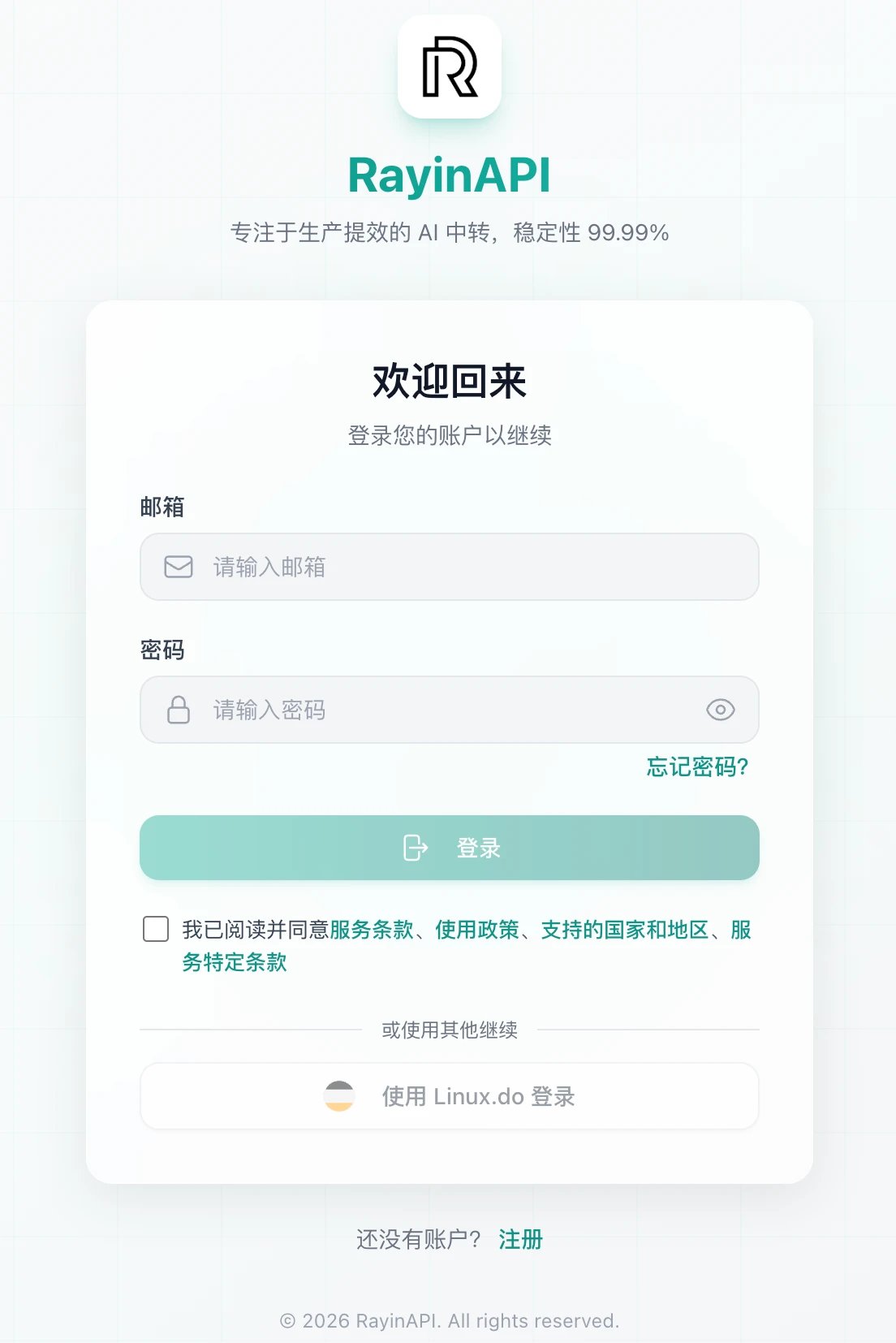
访问 [https://www.rayinai.com/purchase](https://www.rayinai.com/purchase) ,输入邮箱和密码,勾选同意服务条款后点击「登录」。也可以点击「使用 Linux.do 登录」
 登录后进入「充值」页面,页面顶部会显示充值账户和当前余额
* **快捷金额**:点击 10、20、50、100、200、500、1000、2000、5000 中的任一金额
* **自定义金额**:在「自定义金额」输入框中输入其他金额
登录后进入「充值」页面,页面顶部会显示充值账户和当前余额
* **快捷金额**:点击 10、20、50、100、200、500、1000、2000、5000 中的任一金额
* **自定义金额**:在「自定义金额」输入框中输入其他金额
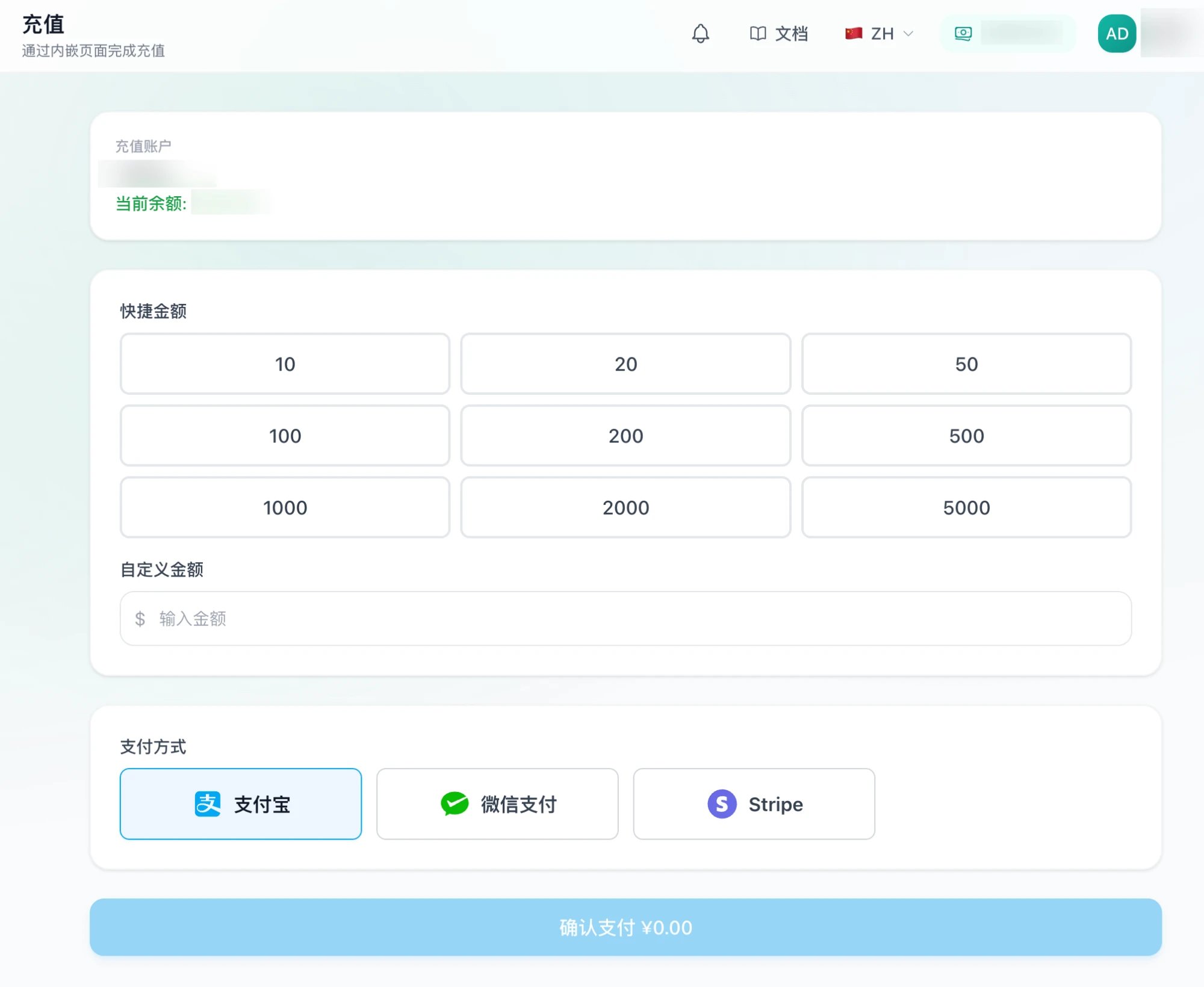 在「支付方式」中选择 **支付宝**、**微信支付** 或 **Stripe**
核对按钮上显示的金额,点击「确认支付」,按提示完成付款
支付完成后余额自动到账,可以在充值页面顶部的「当前余额」中查看
支付后余额未到账,请先刷新页面;仍未到账时联系 [技术支持](mailto:support@rayinai.com),并提供支付记录
## 下一步
充值完成后,你可以
在控制台生成 API 密钥
使用 API Key 配置命令行工具
This documentation is built and hosted on [Mintlify](https://mintlify.com), a developer documentation platform.
在「支付方式」中选择 **支付宝**、**微信支付** 或 **Stripe**
核对按钮上显示的金额,点击「确认支付」,按提示完成付款
支付完成后余额自动到账,可以在充值页面顶部的「当前余额」中查看
支付后余额未到账,请先刷新页面;仍未到账时联系 [技术支持](mailto:support@rayinai.com),并提供支付记录
## 下一步
充值完成后,你可以
在控制台生成 API 密钥
使用 API Key 配置命令行工具
This documentation is built and hosted on [Mintlify](https://mintlify.com), a developer documentation platform.