> ## Documentation Index
> Fetch the complete documentation index at: https://docs.rayinai.com/llms.txt
> Use this file to discover all available pages before exploring further.
# Gemini
> Gemini 配置教程
## 环境准备
请先完成 [环境配置](/environment/setup),确保 Node.js 已正确安装
## 安装
**方法一:Homebrew(推荐)**
```bash theme={null}
brew install gemini-cli
```
**方法二:NPM**
```bash theme={null}
npm install -g @google/gemini-cli
```
在终端中运行:
```bash theme={null}
npm install -g @google/gemini-cli
```
在终端中运行:
```bash theme={null}
npm install -g @google/gemini-cli
```
## 配置
配置文件位于:
* **macOS/Linux**: `~/.gemini/`
* **Windows**: `C:\Users\你的用户名\.gemini\`
**创建 .env 文件**
```env theme={null}
GOOGLE_GEMINI_BASE_URL=https://code.rayinai.com
GEMINI_API_KEY=your-api-key-here
GEMINI_MODEL=gemini-3-pro-preview
```
将 `your-api-key-here` 替换为你的 API Key
## 使用
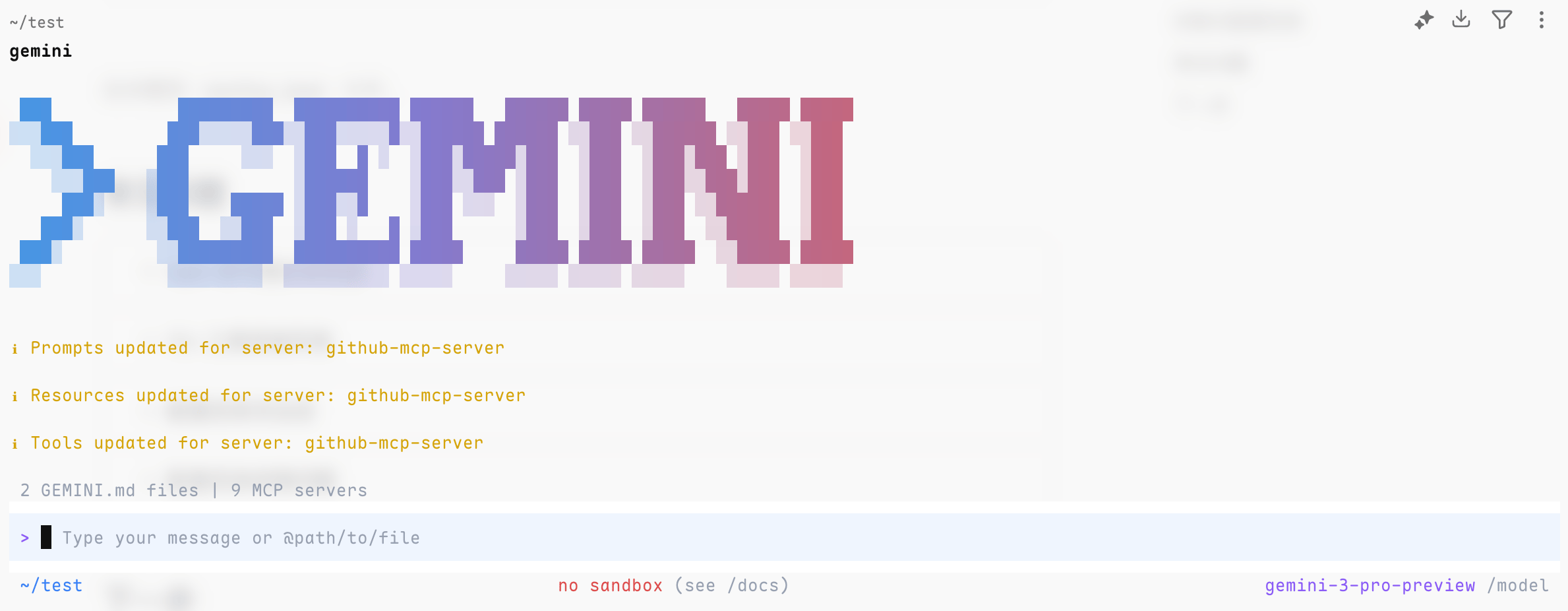
在终端运行 `gemini`,看到对话界面并能正常回复即表示配置完成
```bash theme={null}
gemini
```
 ## 遇到问题
查看 Gemini 配置相关的常见问题
## 遇到问题
查看 Gemini 配置相关的常见问题