> ## Documentation Index
> Fetch the complete documentation index at: https://docs.rayinai.com/llms.txt
> Use this file to discover all available pages before exploring further.
# Claude Code
> Claude Code 配置教程
## 环境准备
请先完成 [环境配置](/environment/setup),确保 Node.js 已正确安装
## 安装
**方法一:Homebrew(推荐)**
```bash theme={null}
brew install --cask claude-code
```
**方法二:Native Install**
```bash theme={null}
curl -fsSL https://claude.ai/install.sh | bash
```
**方法一:Native Install(推荐)**
```powershell theme={null}
irm https://claude.ai/install.ps1 | iex
```
**方法二:WinGet(Windows 原生包管理器)**
```powershell theme={null}
winget install Anthropic.ClaudeCode
```
**方法一:Native Install(推荐)**
```bash theme={null}
curl -fsSL https://claude.ai/install.sh | bash
```
## 配置
编辑配置文件:
* **macOS/Linux**:`~/.claude/settings.json`
* **Windows**:`C:\Users\你的用户名\.claude\settings.json`
```json theme={null}
{
"env": {
"ANTHROPIC_AUTH_TOKEN": "your-api-key-here",
"ANTHROPIC_BASE_URL": "https://code.rayinai.com",
"CLAUDE_CODE_DISABLE_NONESSENTIAL_TRAFFIC": "1"
},
"permissions": {
"allow": [],
"deny": []
}
}
```
将 `your-api-key-here` 替换为你的 API Key
## 使用
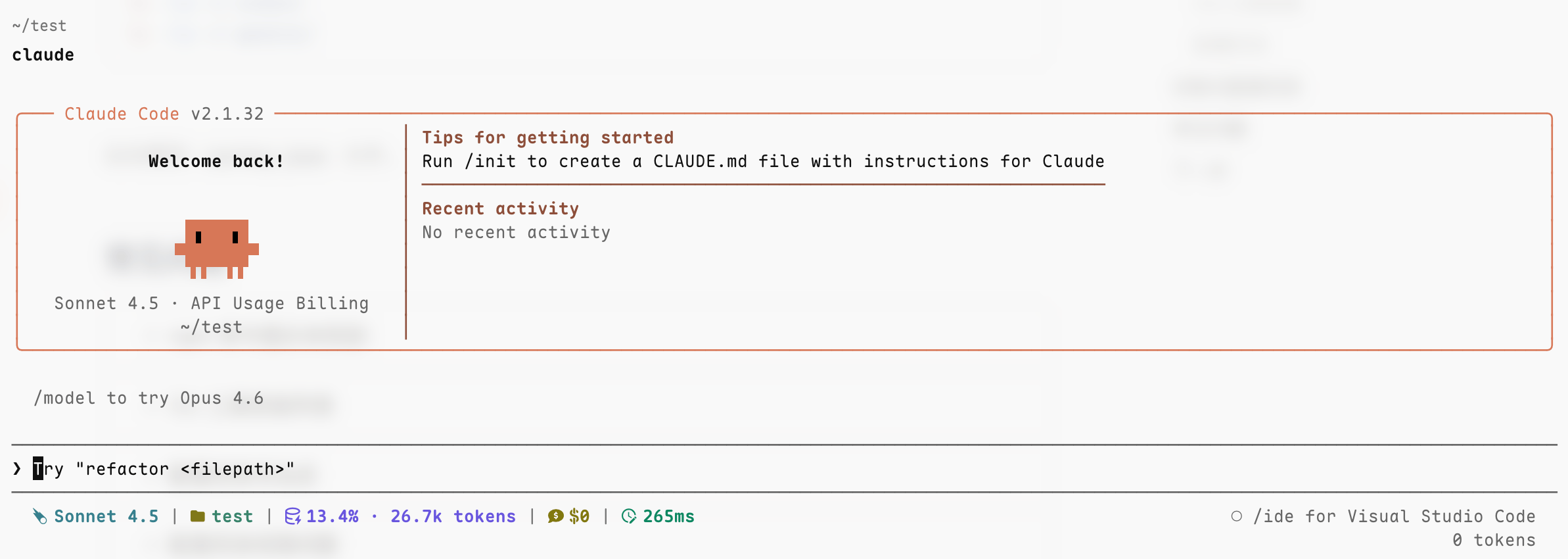
在终端运行 `claude`,看到对话界面并能正常回复即表示配置完成
```bash theme={null}
claude
```
 ## 遇到问题
查看 Claude Code 配置相关的常见问题
## 遇到问题
查看 Claude Code 配置相关的常见问题